Overview
Chart of Account Tags allows users to filter accounts by investment types and is useful when producing reports that display asset allocations, such as the Investment Strategy Comparison Report and Detailed Investment Strategy Comparison Report.
Instructions
| From the Main Toolbar, go to Accounting. |  |
| Select Chart of accounts from the list. | 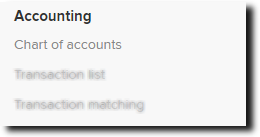 |
Select the sub-account of the investment by checking the box, then from the drop-down list under Tag as, select one of the asset categories. (e.g. Direct Property)
Select to finalise.
System Tags
Choose any one of the system tags.
- Aus Shares
- Inter Shares
- Cash
- Fixed Int Aus
- Fixed Int Inter
- Mortgages
- Direct Prop
- Listed Prop
- Other
Note: Only one system tag can be attached to an account.
Custom Tags
Users can also create custom tags
Select
Enter the tag title, and choose a tag colour
Select create.
Note: Multiple custom tags can be attached to an account.
How do I delete an Account Tag?
To remove an Account Tag from the Chart of Accounts, please follow these steps:
- From the Chart of Accounts screen, tick the checkbox next to the account you want to update.
- Then select Tag as
- Untick the tag you wish to remove.
- Click Apply Tags to save your changes.