Navigation
| From the Main Toolbar, go to Settings. |  |
| Select User roles from the list. | 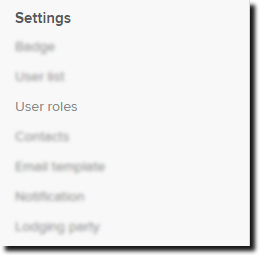 |
The Role Settings page allows Admin users to manage user roles for all 360 applications from a central location without having to access multiple pages.
Editing Role Settings
- To begin, first select the desired application:
- Select the Role you wish to edit. Adding a new role can also be done from here:
- Based on the role selected, the settings for that role will display.
The On/Off counter at the top represents how many settings are enabled.
Additionally, all settings can be enabled or disabled by clicking the relevant option:
- Admin users can then go through each section and enable/disable access by switching the toggle.
To make navigation easier, settings are split into categories based on the menu of Simple Fund 360:
Click the dropdown arrows on the right-hand side to expand and collapse specific sections.
- You can also press the CTRL+F keys on your keyboard to open a search bar and find a specific setting.
| Icons | Action | Steps |
|---|---|---|
 | Clone | Select to copy the selected role. |
 | Delete | Select to delete a user role. The default user roles cannot be deleted. |
 | Expand All | To display all role options for all sections. |
 | Collapse All | To hide all role options and display only section names. |